Quick answer: For a Botim payment for a bill or mobile recharge, open Bills & Recharges, link the provider account and select Pay Bill or Recharge. Review the details before paying. Check wallet funding fees separately, and keep your receipt until the provider shows the payment.
Paying through an app feels simple until the wrong account is linked or a bill still shows as unpaid. This guide helps you choose the right payment route, check charges and handle common problems. It focuses on bills, recharge and basic wallet payments in the UAE, with official instructions checked on 7 October 2026.
Which Botim payment service do you need?
Start with the task you want to complete. Botim’s money services include bills, wallet payments and international transfers. Sending money to a person is a different task from paying a bill linked to a service account.
| Your task | Where to start | Details to check |
|---|---|---|
| Pay a bill or recharge a mobile | Bills & Recharges | Provider, account or phone number |
| Pay another Botim user | Wallet transfer or Scan to Pay | Recipient and payment amount |
| Send money abroad | International Transfer | Country, recipient and transfer quote |
What should you check before paying?
Have the correct account or phone number ready. If you plan to pay from your wallet, complete the required identity checks first. Astra Tech’s platform terms require UAE residency, an Emirates ID and identity verification for wallet services. The app may show account limits or request further documents.
Check the funding method as well. Make sure the wallet balance covers the payment, or that your chosen card method is available at checkout. App menus can change between versions, so follow the options shown on your device. If Botim will not open at all, start with our Botim not working guide.
How do you pay bills or recharge through Botim?
The official Bills & Recharges instructions describe the following process. Keep your latest bill beside you so you can compare the account details as you go.
1. Open the service and link your account
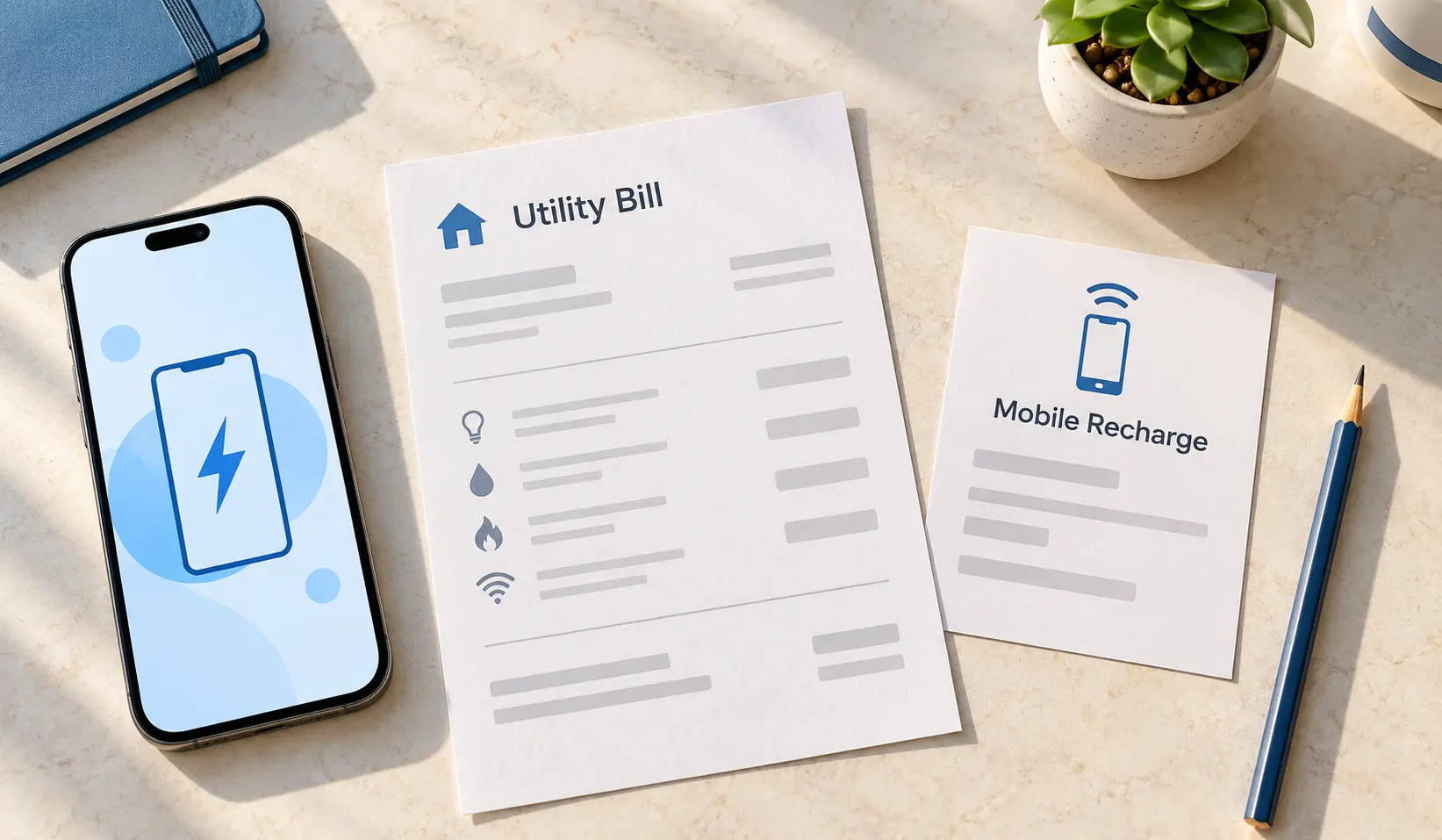
Open Bills & Recharges from Wallet, Explore or Chat. Select Link Accounts, choose the provider and enter your account details, then select Link Account. Compare the number with your bill or the mobile you want to recharge. This check helps you catch a wrong account before paying.
2. Choose the bill or recharge
Select Pay Bill or Recharge for the linked account. Review the account and amount shown before continuing. If you manage more than one number, slow down at this point: a familiar contact name is not enough. The number or service account must match the payment you intended.
3. Review the payment and keep a record
Choose an available payment method, check the final amount and complete the app’s security prompts. Save the confirmation or reference after paying. You can then compare that record with the provider’s account update, rather than relying on whether the bill has disappeared from the screen.
Are Botim payment and wallet top-ups free?
The Bills & Recharges FAQ says there is no service fee for bill payments or recharges. Wallet funding is separate. Adding money to your wallet by card can carry a fee even when the bill-payment service itself has no charge.
Astra Tech’s Schedule of Charges, effective 4 September 2026, lists these wallet fund-in fees:
| Wallet funding method | Published fee |
|---|---|
| Bank account transfer | Free |
| Cash deposit at a kiosk or POS | Free |
| Debit or prepaid card | Up to 1% |
| Credit card | Up to 3% |
These are wallet funding fees, not a price list for direct bill checkout. For example, the published credit-card maximum would mean up to AED 3 in funding fees on an AED 100 top-up. Check the actual fee shown before authorizing it. The schedule states that fees include VAT unless it says otherwise.
What if a payment fails or the bill stays unpaid?
Astra Tech says some service providers can take up to 48 hours to update an account after a successful bill payment. That delay is different from a failed payment. Check the transaction status, payment record and any wallet or bank debit before deciding to try again.
| What you see | What to do next |
|---|---|
| Failed, with no payment taken | Read the error and check the account details, balance and payment method before retrying. |
| Pending, or money taken without a clear result | Keep the reference and ask support to confirm the status before making another payment. |
| Completed, but the provider still shows an unpaid bill | Check the linked account and provider processing time; keep the confirmation for a payment trace. |
For help, use support inside the app or our Botim customer care guide. Prepare the reference, date, amount and provider name. Mask sensitive details in screenshots, and never send your PIN, OTP or full card number. An unclear status needs a payment check, not repeated attempts that could create a duplicate charge.
If an OTP is missing, our Botim verification-code guide covers phone and network checks. When the bank or card issuer sends the code, contact that provider if it still does not arrive.
Frequently asked questions
Can I pay a bill for someone else?
The Bills & Recharges FAQ allows payments using another person’s account details. Confirm the number or service account with them first, and agree how you will share the receipt. Do not guess an account number from an old message.
Can I add an overseas card to my Botim wallet?
The wallet FAQ currently says wallet cards must be UAE-issued debit, prepaid or credit cards. This restriction concerns adding a card to the wallet. Check the methods offered for the specific service you are paying for.
Is Scan to Pay the same as paying a utility bill?
The wallet FAQ describes Scan to Pay as scanning a code shared by another Botim user to send money. For a utility bill or mobile recharge, use the linked provider account in Bills & Recharges. Check what the code or account is for before authorizing a payment.
Before you confirm your next payment
Match the provider, account number and amount, then check how you are funding the payment. Keep the receipt until the payment is reflected where it should be. If money has left your account but the result is unclear, get the status checked before trying again. Those small checks are more useful than rushing through a second payment.