You need one Botim call from last week, and it feels like it is gone for good. It is not. Your Botim call history lives in the Calls tab, and you can see it in less than a minute. This guide shows you how to get Botim call history, how to delete one call or clear the whole list, and what to do when a call you need is no longer there.
Quick answer: Your Botim call history is one tap away, and so is the risk of losing it. Open Botim, tap Calls at the bottom, and scroll the list to see your recent calls. Each line shows the name or number, the date and time, and whether the call came in, went out, or was missed. To delete one call, press and hold it and tap Delete. To clear the whole list, use Edit, select the calls, and tap Delete. But if a call or chat is already deleted, you cannot bring it back inside Botim, so back up your phone first. Your calls are safe. Your chats are not, until you back them up.
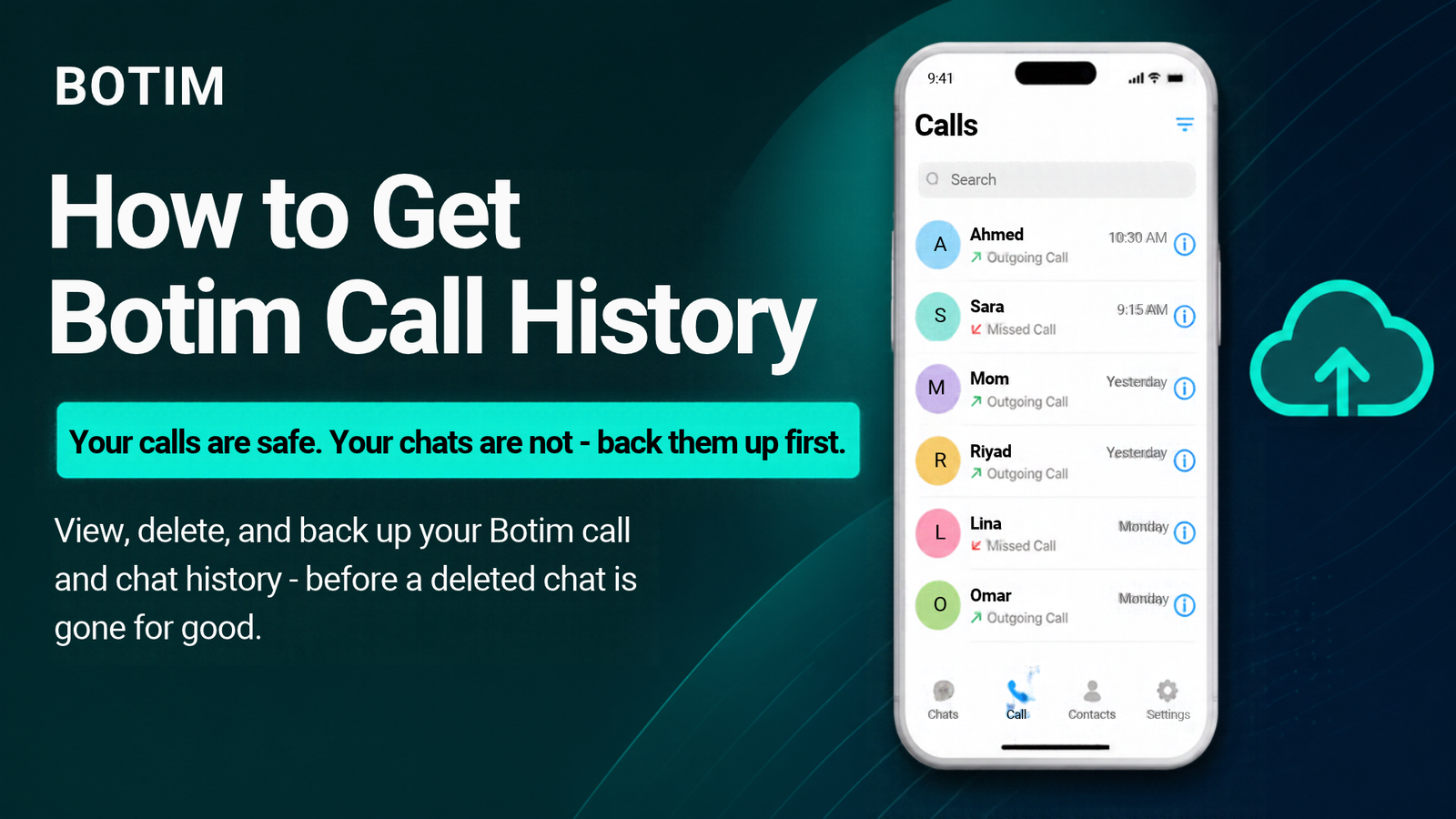
How to Get Botim Call History in 4 Quick Steps
- Open the Botim app and sign in to your account.
- Tap Calls at the bottom of the screen.
- Scroll up and down to see your recent calls, newest first.
- To find one person fast, use the search box at the top of the Calls tab if your version of Botim shows one. If you do not see it, just scroll through the list.
What Your Botim Call History Shows
Your Botim call history is a simple list of your voice calls and video calls. It helps you remember who you called, who called you, and when it happened. Each line in the list shows the name or number of the other person, the date and time of the call, and a small icon for missed, incoming, or outgoing calls. You can also tell a voice call from a video call by the small icon next to it.
Your history only covers the number you are signed in with on this phone. If you use two numbers on Botim, each number has its own call history, so check that you are looking at the right one. In the same way, if you use Botim on two devices, the list can look different on each device, because each device keeps its own list.
How to Find One Call Fast
When the list is long, do not scroll forever. Try these three quick ways to find one call.
- Search by name: tap the search box at the top of the Calls tab and type the name or number. If your version of Botim does not show a search box there, move to the next tip.
- Scroll to the date: calls sit in order, newest first. If you know the day of the call, scroll until you reach that date.
- Open the chat: open the chat with that person. Your calls with them also appear inside the chat, so you can see the date and time there too.
A small tip that saves time: if the call matters, take a screenshot of it now. Botim has no simple one-tap export for call history, so a screenshot is the easiest way to keep a copy.
How to Delete Botim Call History
Maybe you want to clear one awkward call, or maybe you want a clean list. Either way, deleting is quick. Just remember that deleting is final. Once a call leaves your list, Botim has no undo button for it.
How to Delete One Call in Botim
- Open Botim and tap Calls.
- Press and hold the call you want to remove.
- Tap Delete when you see it.
That is it. The call leaves your list right away. This only removes the call from your phone. It does not delete the call from the other person’s phone.
How to Clear Botim Call History on iPhone
On iPhone, the steps are the same as above. Press and hold one call, then tap Delete. To clear more than one call, look for Edit at the top of the Calls tab. If your version of Botim shows a way to pick more than one call, select the calls you want to remove and delete them together. If you do not see that option, delete the calls one by one. It takes longer, but it works.
How to Clear Botim Call History on Android
On Android, press and hold one call in the Calls tab, then tap Delete or the trash icon. To clear the whole list, tap the three dots in the Calls tab and look for a clear or delete-all option. Not every version of Botim shows this option. If yours does not, delete the calls one by one.
Before you clear everything, stop and think. Do you need any of these calls later, for a date, a time, or a number you forgot to save? If yes, take a screenshot first. You cannot get the list back after you clear it.
Can You Recover Deleted Botim Call History?
The honest answer is no, not with a button inside Botim. Once you delete a call, Botim has no restore button to bring it back. That is why the steps above warn you to take a screenshot first.
You may see apps or websites that promise to recover your deleted Botim call history in one tap. We do not recommend them. Their claims are not verified, and many of them ask for your data, your money, or access to your phone. Do not give a strange app access to your Botim account.
What can still help? Try these three things.
- Check your phone backup: if your phone was backed up before you deleted the call, the call list may be in that backup. The next section shows you how to check.
- Ask the other person: the call is still in their Botim call history, unless they deleted it too. They can tell you the date and time, or send you a screenshot.
- Check the chat: if the call also appears in your chat with that person, the date and time may still be there.
How To Back Up And Restore Your Botim Chat History
Botim does not give you one clear backup button for call history, so your phone backup is your safety net. When your phone backs up, your Botim chats and call list can come back with it if you ever need to restore your phone. Botim does have one built-in way to move chats to a new phone, called Migrate Chat History, which we cover below.
What Gets Backed Up
A phone backup saves your Botim chats, your photos, videos, and voice notes, and your call list. It saves what is on your phone at the time of the backup. It does not save chats or calls you already deleted, and it does not save anything that happens after the backup runs. So back up often, and back up before you delete anything you may need later.
Back Up Botim Chats on iPhone
- Open your iPhone Settings.
- Tap your name at the top, then tap iCloud.
- Turn on iCloud Backup, then tap Back Up Now.
Keep your phone on Wi-Fi and charging while the backup runs.
Back Up Botim Chats on Android
- Open your phone Settings.
- Tap Google, then tap Backup.
- Turn on backup, then tap Back Up Now.
The exact names of these menus can look a little different on each Android phone, but the path is almost always Settings, then Google, then Backup.
One warning before you restore a backup: restoring a phone backup puts your phone back to the date of that backup. Newer chats, photos, and calls can be lost in the process. So back up your phone as it is now first, and only restore an old backup when the missing call is worth that risk.
How to Restore Your Botim Chats on a New iPhone
- Back up your old iPhone first. Follow the iPhone steps above, and wait for the backup to finish.
- Turn on your new iPhone and follow the setup screens until you reach Apps and Data.
- Tap Restore from iCloud Backup and sign in with the same Apple ID you used on your old phone.
- Pick the latest backup from the list, then wait for the restore to finish.
- Open Botim and sign in with the same phone number. Your chats should be back.
Keep your new phone on Wi-Fi and charging while the restore runs. If you skip the backup on your old phone, there will be nothing to restore from.
How to Restore Your Botim Chats on a New Android Phone
- Back up your old Android phone first. Follow the Android steps above, and wait for the backup to finish.
- Turn on your new Android phone and follow the setup screens.
- Sign in with the same Google account you used on your old phone.
- When the setup asks, choose to restore from your backup, then wait for it to finish.
- Open Botim and sign in with the same phone number. Your chats should be back.
The exact screens can look a little different on each Android phone, but the path is the same: same Google account, same backup, same number.
How to Move Your Botim Chats to a New Phone
If you have both phones in your hands, Botim has a built-in way to move your chats. It is called Migrate Chat History, and it moves chats from your old phone to your new one over Wi-Fi.
- On your old phone, open Botim and tap Me at the bottom right.
- Tap Chats and Calls, then tap Migrate Chat History.
- Choose the chats you want to move, then tap Next.
- Keep both phones on the same Wi-Fi network.
- On your new phone, open Botim and tap Migrate from old phone when you sign in.
- Scan the QR code on your old phone with your new phone, then wait for the move to finish.
Keep both phones close together and on the same Wi-Fi until the move is done. This moves your chats to the new phone, but it does not bring back chats you already deleted.
What Happens If You Have No Backup
If you have no backup, your chats and calls stay only on the phone where they happened. If that phone is lost, broken, or reset, those chats are gone, and Botim cannot bring them back. A deleted chat is gone too, even if you back up your phone after the delete.
- Keep your old phone: if the chats are still on it, do not reset it. Back it up first, or use Migrate Chat History while both phones are in your hands.
- Move your chats while you can: if you still have the old phone, follow the Migrate Chat History steps above before you switch phones.
- Take screenshots: for one or two chats that matter, screenshots are the fastest way to keep a copy.
- Ask the other person: the chat is also on their phone, unless they deleted it too. They can send you the messages or a screenshot.
The best fix is the one you do before you need it. Turn on your phone backup today, so the next phone switch is a simple restore.
Why Your Botim Call History Is Missing
If a call you expect is not in the list, one of these reasons is usually the cause.
- You are signed in with a different number. Your call history belongs to one number. Sign in with the number you used for that call.
- You are on a new phone. Your call history stays on your old phone unless you moved it with a backup. Check the old phone if you still have it.
- You deleted the call. Deleted calls do not come back on their own. Check your phone backup or ask the other person.
- The call is very old. The Calls tab shows your recent calls. A call from long ago may no longer appear in the list.
- You are looking in the wrong place. Calls live in the Calls tab, not in the Chats tab. Tap Calls at the bottom of the screen.
If none of these fit, close Botim and open it again, then check the Calls tab once more. If the call is still missing, it is most likely gone from this phone.
Frequently Asked Questions
How can I see my Botim call history?
Open Botim, tap Calls at the bottom, and scroll the list. That is your full recent call history, newest first.
How do I delete call history in Botim?
Press and hold one call in the Calls tab, then tap Delete. To clear more than one, look for Edit on iPhone or the three-dot menu on Android. If your version does not show a clear-all option, delete the calls one by one.
How do I clear Botim call history on iPhone?
On iPhone, press and hold a call in the Calls tab and tap Delete. To remove several calls at once, look for Edit at the top of the Calls tab. Take a screenshot of any call you may need before you delete it, because deleting is final.
How do I recover deleted Botim call history?
Botim has no restore button for deleted calls, so a deleted call cannot be brought back inside the app. Check a phone backup from before the deletion, or ask the other person to check their own call history.
Can I recover my Botim chats?
The same rule applies. Botim has no simple restore button for deleted chats. A phone backup from before the deletion may bring them back when you restore your phone, but restoring also puts your phone back to that date, so back up your phone as it is now first.
Can I back up my Botim chat history?
Yes. Back up your whole phone: iCloud Backup on iPhone, or Google Backup on Android. That backup is the best safety net for your Botim chats and call list. For one important call, a screenshot is the fastest backup of all.
Final Thoughts
Your Botim call history is easy to reach once you know where to look. Tap Calls, scroll the list, and you have it. Deleting is just as easy, but it is final, so keep a screenshot of anything you may need. And if a call is already gone, check your phone backup before you give up.
Did you find the call you were looking for? Tell us in the comments below, and share the one step that helped you most.