
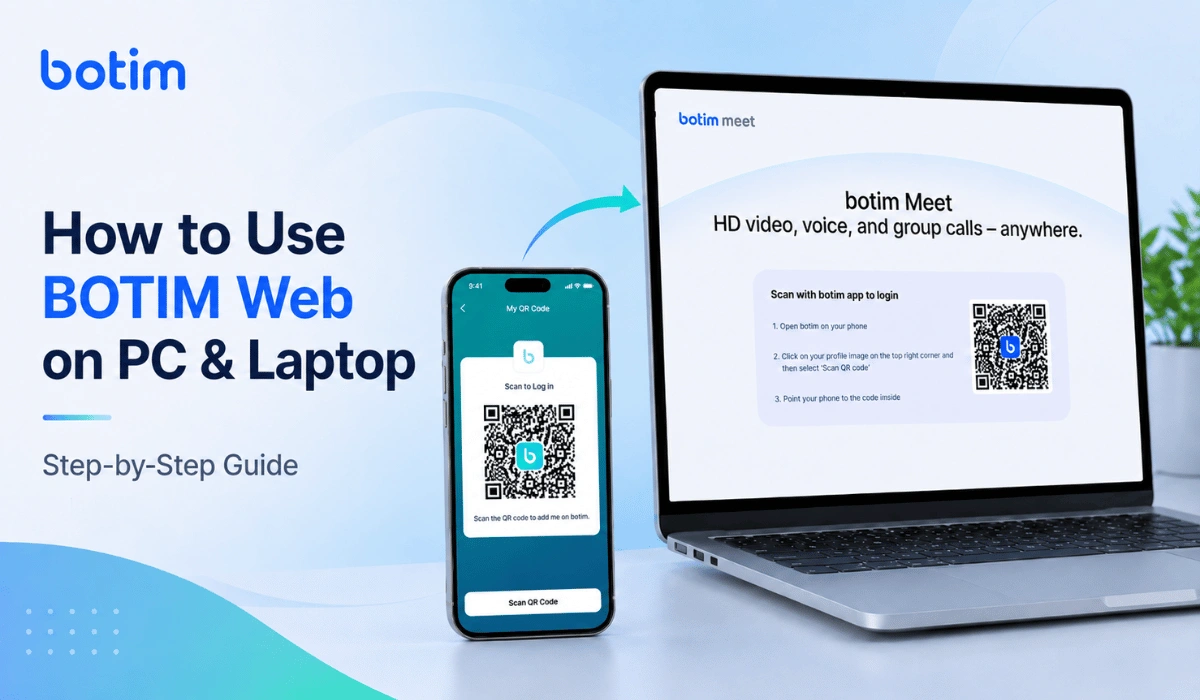
Using BOTIM on your phone is fine for immediate calls and messages. But sometimes the small screen can feel annoying. Maybe you are working on your laptop, typing long messages, checking the chats or just want everything on one screen.
That is where BOTIM Web helps. It lets you connect your BOTIM account to a PC or laptop using a QR code. You do not need to deal with any complex verification steps or mobile codes on your computer. You simply scan the code from your phone, and your BOTIM session opens on the bigger screen.
The approach is not hard but the QR code step can confuse some users. So in this guide, we’ll go slowly and cover everything: what BOTIM Web is, what you need before using it, how to scan the QR code, how to log out and what to do if BOTIM Web is not working.
What Is BOTIM Web?
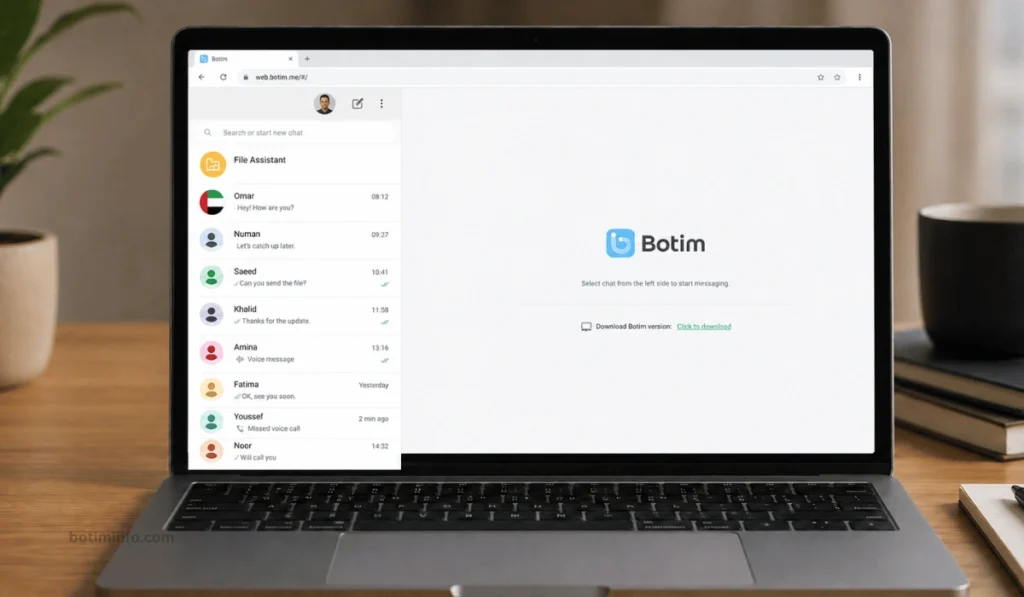
BOTIM Web is a browser-based platform of BOTIM on a computer through a browser. Instead of only using the BOTIM app on your Android phone or iPhone, you can open a web session on your PC/laptop browser and link it to your phone.
It works a bit like many other messaging web apps like WhatsApp Web. Your phone is used to scan a QR code and after that, the computer gets linked to your BOTIM account. If you are wondering “Can BOTIM be used on laptop” natively, the web version makes it much easier for typing messages, managing chats or keeping BOTIM open while you are working without downloading heavy setup files.
BOTIM itself is mainly known for calls, chats, and communication features. The web version is useful when you want a bigger screen and keyboard, but your phone app is still important for login and account linking.
What You Need Before Using BOTIM Web
Before you start, make sure you have basic things ready before using BOTIM Web. This saves time because most BOTIM Web problems stem from a single missing element.
You need:
- BOTIM app is installed on your phone
- Active BOTIM account
- PC or laptop with internet
- Updated browser like Chrome, Edge, Safari, or Firefox
- Working phone camera
- Stable internet on both phone and computer
- Keep Phone close enough to scan the QR code
- Updated BOTIM app, if possible
Also, keep your phone unlocked while scanning. If your phone screen keeps turning off or the app closes in the middle of the scan, the QR code may not be scanned. Small thing, but it happens.
How to Use BOTIM Web on PC/Laptop
Now let’s go through the actual steps. Keep your phone and laptop close together before starting.
Step 1: Open BOTIM Web on Your PC or Laptop
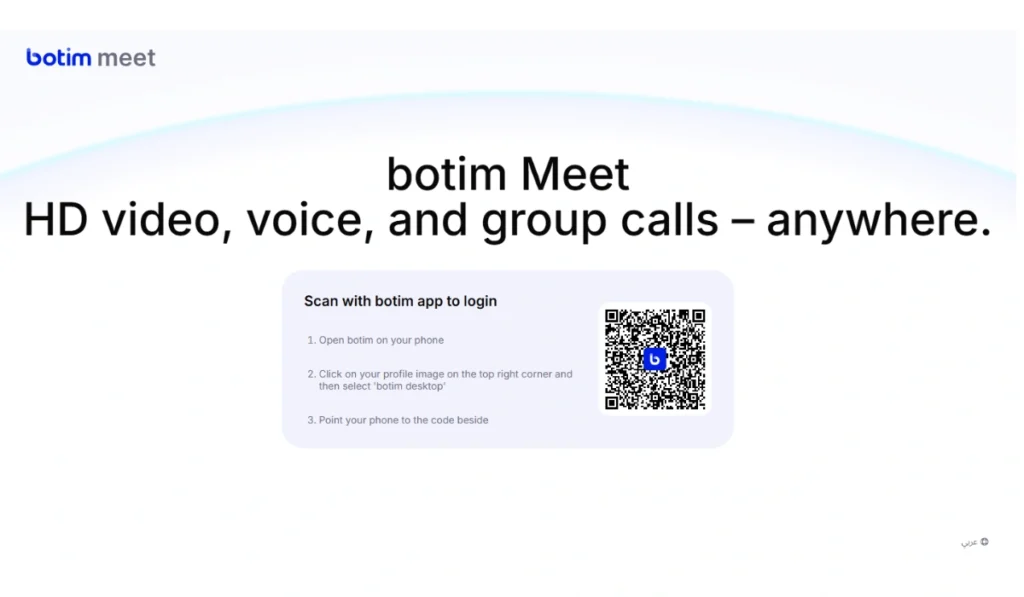
Open your browser on the computer and go to the official BOTIM Web page (webmeet.botim.me). You should see a QR code on the screen. This QR code is what connects your phone app to the computer session.
Step 2: Open BOTIM on Your Phone
Now open the BOTIM app on your phone. Make sure you are logged in to the same BOTIM account you want to use on the laptop.
If the app asks for an update, it is better to update it first. An outdated app version can sometimes cause linking or QR-scanning problems.
Step 3: Tap Your Profile Image
In the BOTIM app, tap your profile image. It is usually around the top area of the app. Tap it to open your profile or settings area.
This is the part many users miss. They keep looking for a “web login” button, but BOTIM’s web login flow usually starts from the profile area.
Step 4: Select BOTIM Desktop
After tapping your profile image, look for the option called BOTIM Desktop. Tap it. This should open the scanner on your phone that lets you scan the QR code on your computer screen.
Step 5: Scan the QR Code
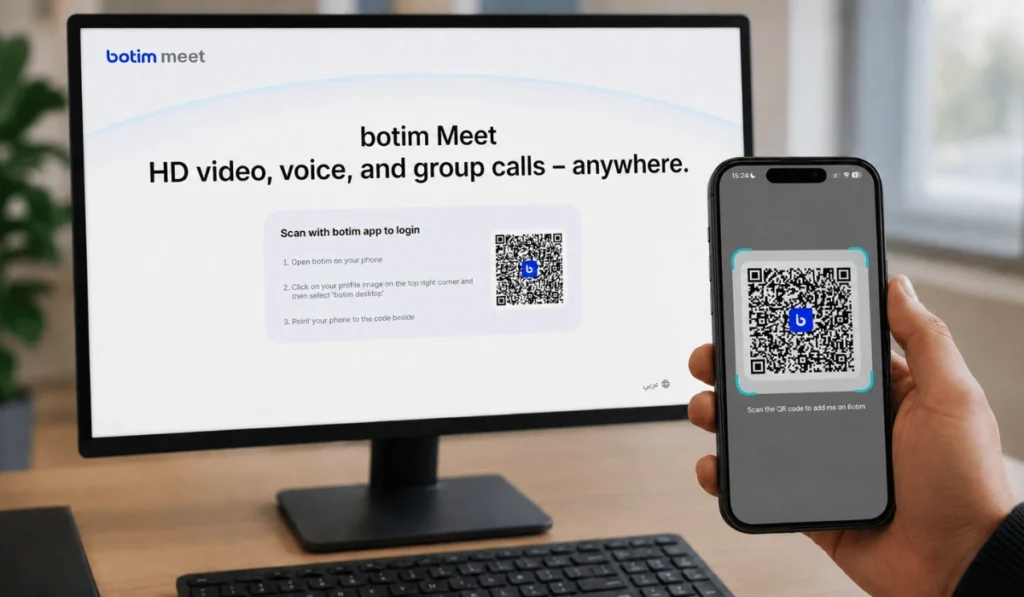
Point your phone camera at the QR code on your browser screen. Keep the phone steady for a few seconds. If the scan does not happen, increase your laptop screen brightness or move the phone a little closer.
If the QR code expires, refresh the BOTIM Web page and scan the new code. Don’t worry, expired QR codes are normal on many web login systems.
Step 6: Wait for BOTIM to Link
After scanning, wait a moment while BOTIM connects your phone account to the computer. Once it links, you should be able to use BOTIM on your PC or laptop.
If it does not open right away, check the phone app. Sometimes it may ask you to confirm login or give permission.
Step 7: Start Using BOTIM on Your Computer
Once linked, you can use BOTIM from your laptop screen. This is helpful if you are working, typing long messages, checking chats or want to avoid switching between phone and computer again and again.
Just remember one thing. If you are using a shared computer, log out when you are done. Closing the tab is not always the same as logging out.
How to Use BOTIM on Windows or Mac
The setup is mostly the same on Windows and Mac when using BOTIM Web in a browser. Open the web page, scan the QR code from your phone, and wait for the account to link.
So whether you are using a Windows laptop, desktop PC, MacBook or iMac, the main steps stay similar. The browser matters more than the operating system. If one browser does not work, try another one before assuming BOTIM Web is broken.
BOTIM also has an official download page for its app, so you can check there if you are looking for app downloads or the latest official version.
Can You Use BOTIM Web Without Your Phone?
No. For login, you usually need your phone. BOTIM Web uses the phone app to scan the QR code and link your account to the computer. So if you do not have access to your phone, the web login may not work.
This is actually a safety step. It helps confirm that the person opening BOTIM Web is connected to the real BOTIM account on the phone. So yes, it may feel like one extra step but it also protects your account from random browser logins.
After linking, some features may stay available depending on the session, internet speed and the app behavior. But for the first login, keep your phone with you.
What Can You Do on BOTIM Web?
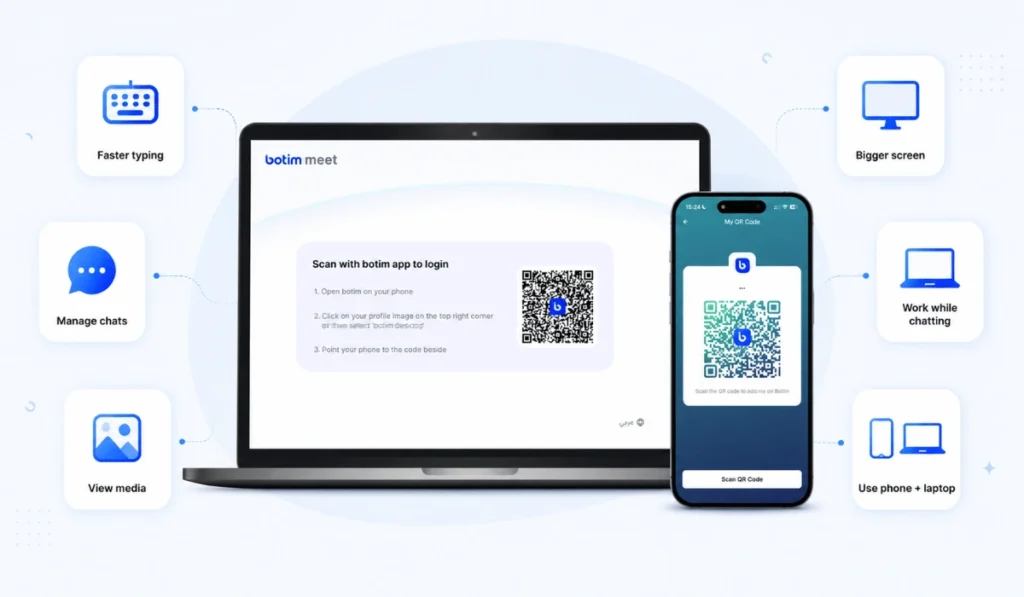
BOTIM Web is mainly useful when you want BOTIM on a bigger screen. It is not always about doing something new. Sometimes it is just easier to type from a laptop keyboard than from a phone screen.
You may use BOTIM Web to:
- Type messages faster
- Manage chats from your laptop
- View media on a bigger screen
- Keep BOTIM open while working
- Use your phone and computer together
- Avoid switching devices again and again
BOTIM’s official site describes the app as an all-in-one app for calls, chats, payments, transfers, and more. Exact web features can change, so don’t be surprised if some mobile features are easier on the phone app than on the web version.
How to Log Out of BOTIM Web
If you are using BOTIM Web on your own laptop, logging out every time may not feel urgent. But if you are using an office computer, friend’s laptop, hotel business center, or any shared device, log out properly.
Here is the simple way:
- Open the BOTIM Web session on your computer.
- Look for the menu, settings, or logout option.
- Click logout.
- Check your phone app for linked desktop sessions if that option appears.
- Do not save login details on shared computers.
And one more thing. Closing the browser tab is not always enough. If the session stays active, someone else may reopen it. So use the actual logout option when you are not on your own device.
BOTIM Web Not Working? Common Fixes
If BOTIM Web does not work, don’t jump straight to reinstalling everything. Most of the time, it is a simple QR code, browser, internet, or app update issue.
| Problem | What to Try |
|---|---|
| QR code does not scan | Clean phone camera, brighten laptop screen, move closer |
| QR code expired | Refresh the BOTIM Web page and scan again |
| Web page does not load | The scanner does not open |
| Login keeps failing | Check the internet, try another browser, reload page |
| Chats are not syncing | Check internet on both phone and laptop |
| Works on phone but not PC | Try incognito mode or another browser |
| Scanner does not open | Restart the BOTIM app and check camera permission |
If the QR code is not scanning, the issue may be as simple as low screen brightness. Increase brightness, clean your phone camera, and hold the phone steady. Don’t move it too fast over the QR code.
If the page is not loading at all, try another browser. Browser cache and old cookies can also cause problems, so clearing site data can help if BOTIM Web keeps freezing or showing a blank page.
And if the issue persists on your phone as well, you can check our detailed guide on why BOTIM is not working to resolve app-level glitches.
Tips for Using BOTIM Web Safely
BOTIM Web is convenient, but you should use it carefully, especially on shared computers. Your chats are private, and you do not want them left open on someone else’s screen.
Keep these tips in mind:
- Use only the official BOTIM Web/Desktop page
- Do not scan BOTIM QR codes from unknown websites
- Log out from shared or public computers
- Keep your BOTIM app updated
- Do not leave private chats open on a public screen
- Lock your laptop when you step away
- Avoid using BOTIM Web on devices you do not trust
The QR code login is simple, but still treat it like account access. If someone tricks you into scanning a fake code, that can create problems. So only scan the code from the BOTIM Web page you opened yourself.
Final Thoughts
Using BOTIM Web on a PC or laptop is pretty simple once you know where the QR code option is. Open BOTIM Web on your PC browser. At the same time, open BOTIM on your phone, tap your profile image, choose BOTIM Desktop and scan the code on the laptop screen.
If it does not work, check basics setting first. Refresh the QR code, update BOTIM app, check the internet on both devices, increase screen brightness, and try another browser. Most problems are small and can be fixed in a few minutes.
BOTIM Web is useful when you want a bigger screen, faster typing, or easier chat access while working on your computer. Just remember to log out if you are using someone else’s laptop.


i want to connect
good